
Yapora
Turn any image into an avatar that talks when you do.
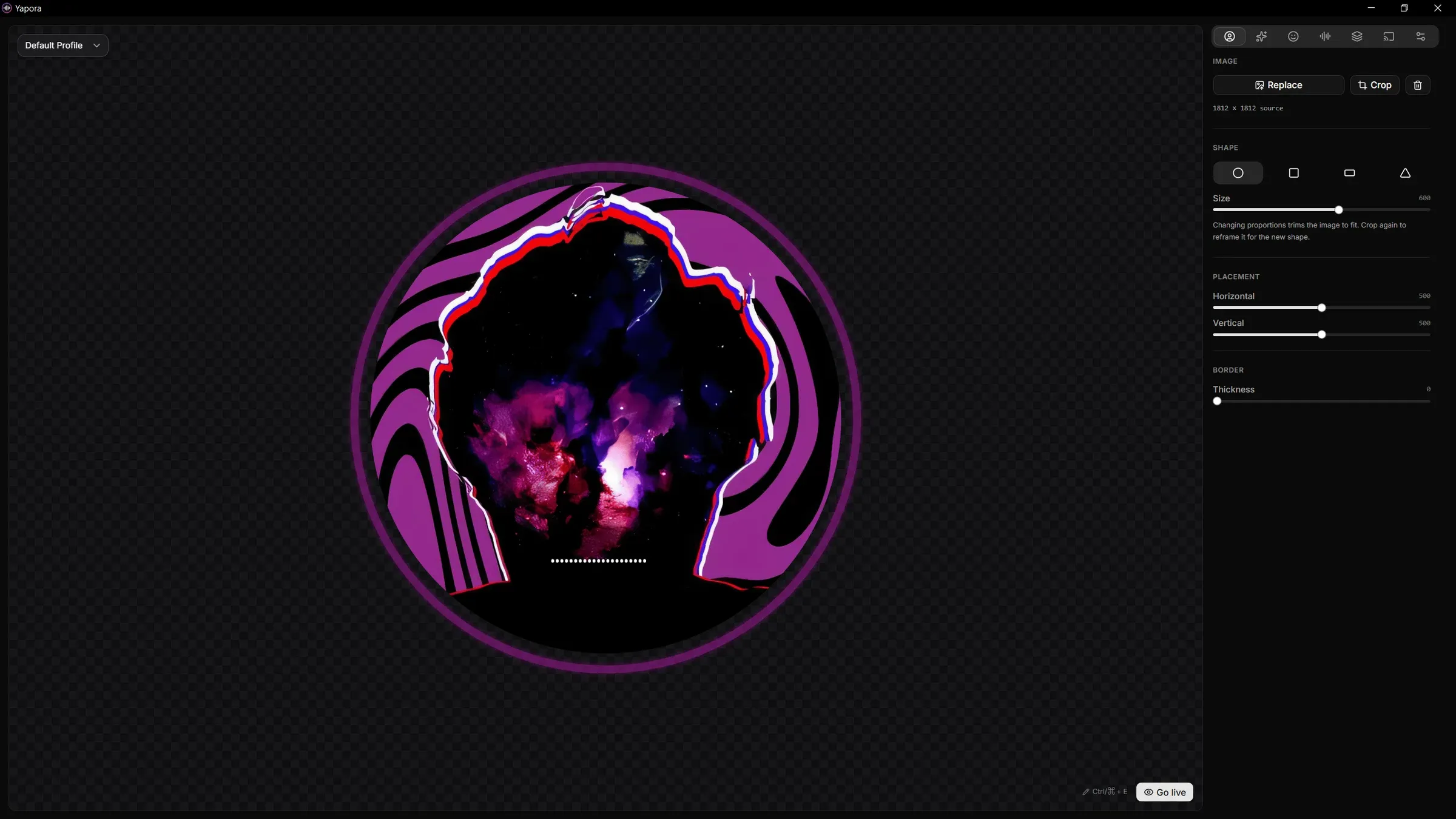
Pick an image, frame it, and drag a mouth onto its face. It moves with your voice, live in OBS while you stream, or in a finished video made from any audio file.
v0.0.2 betaOct 3, 2026FreeWindows
Tour
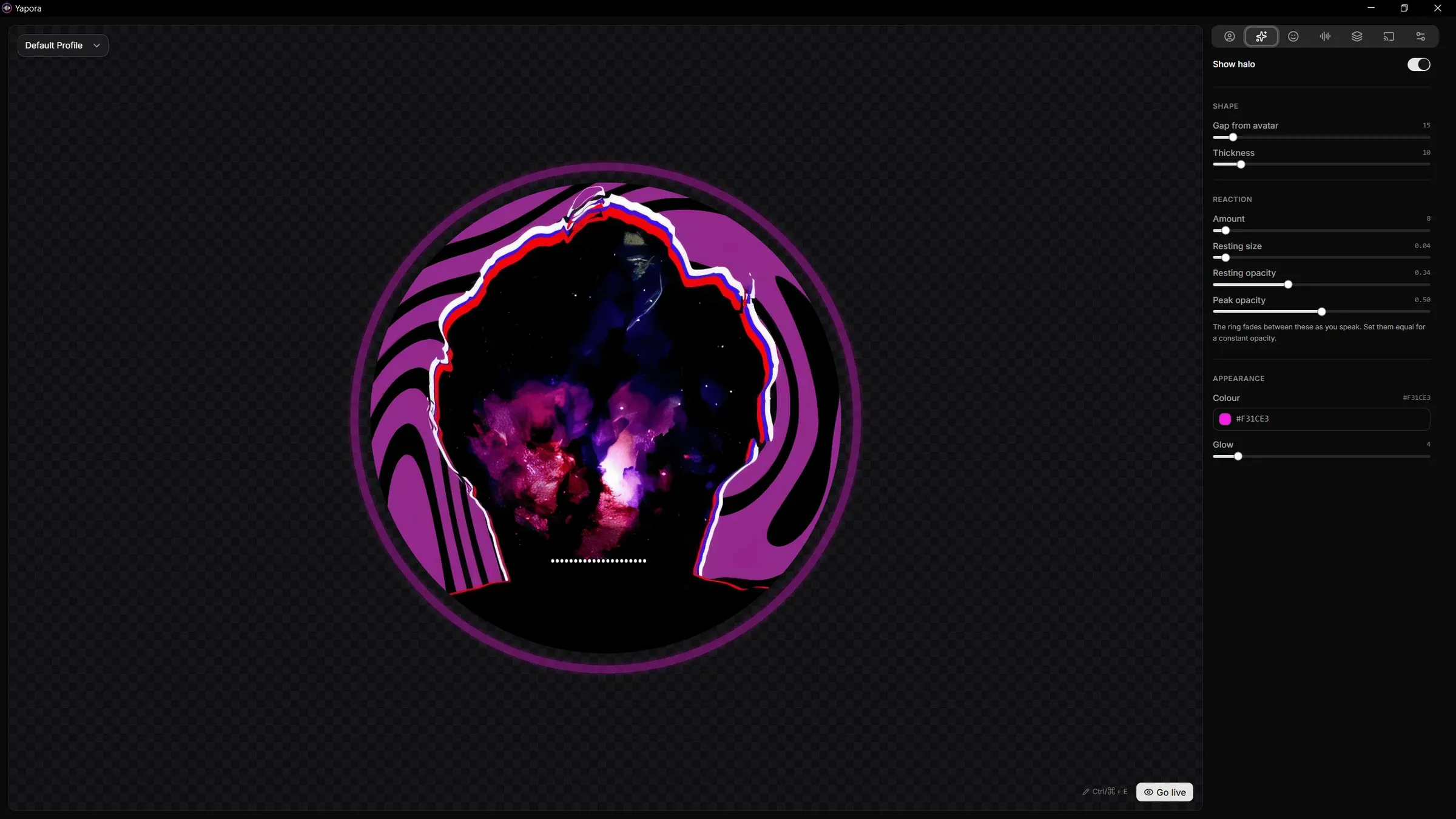
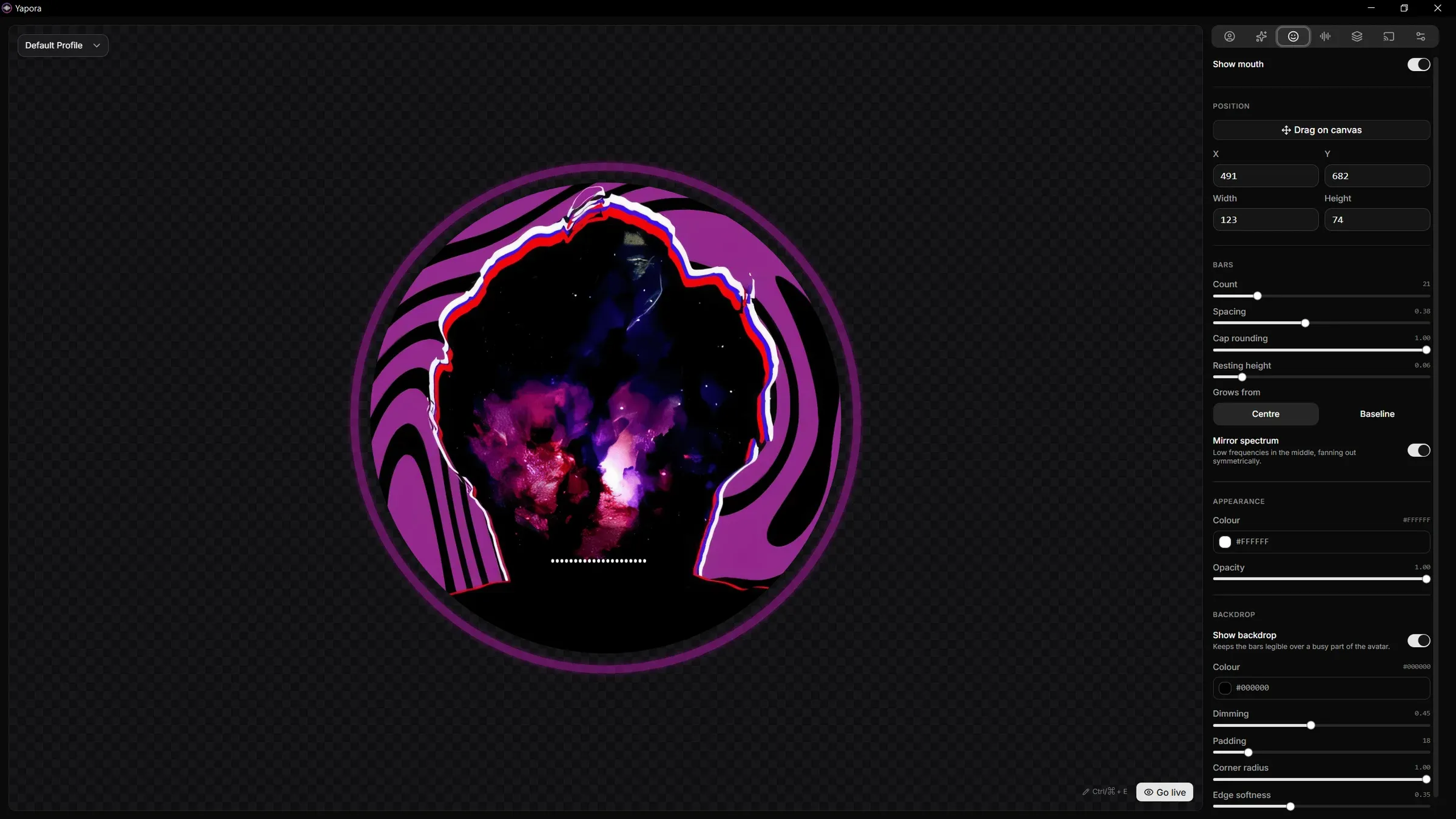
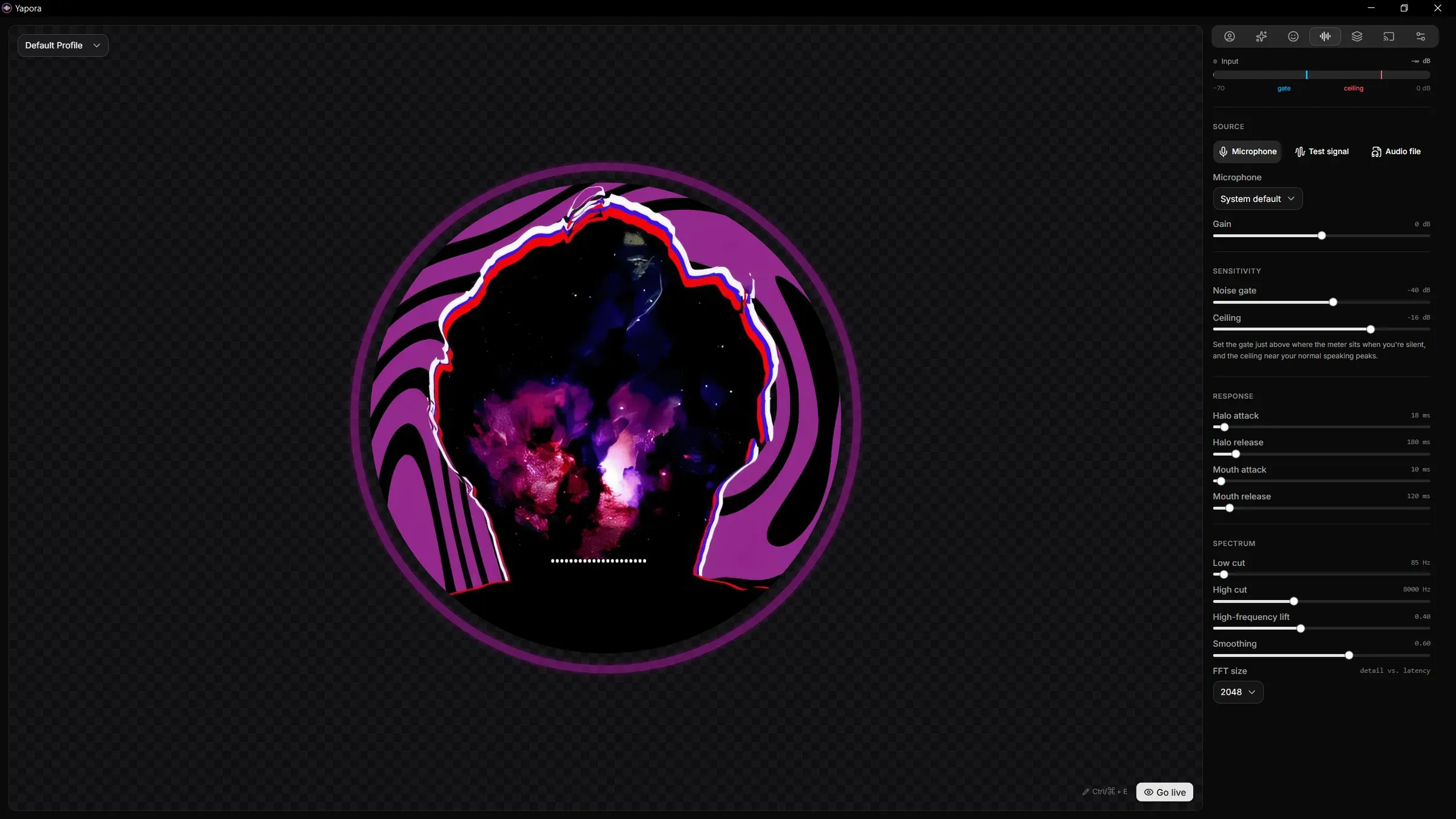
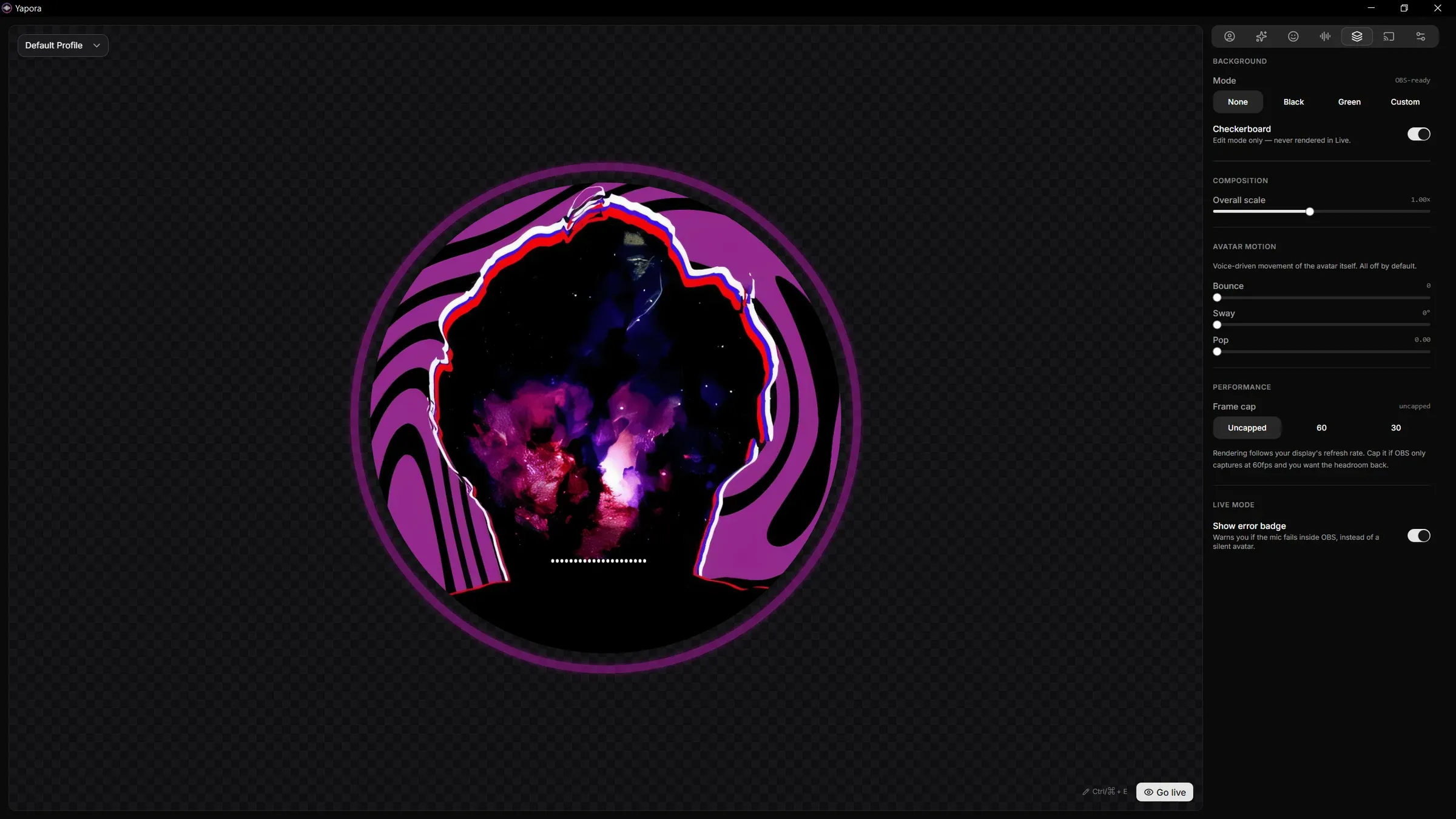
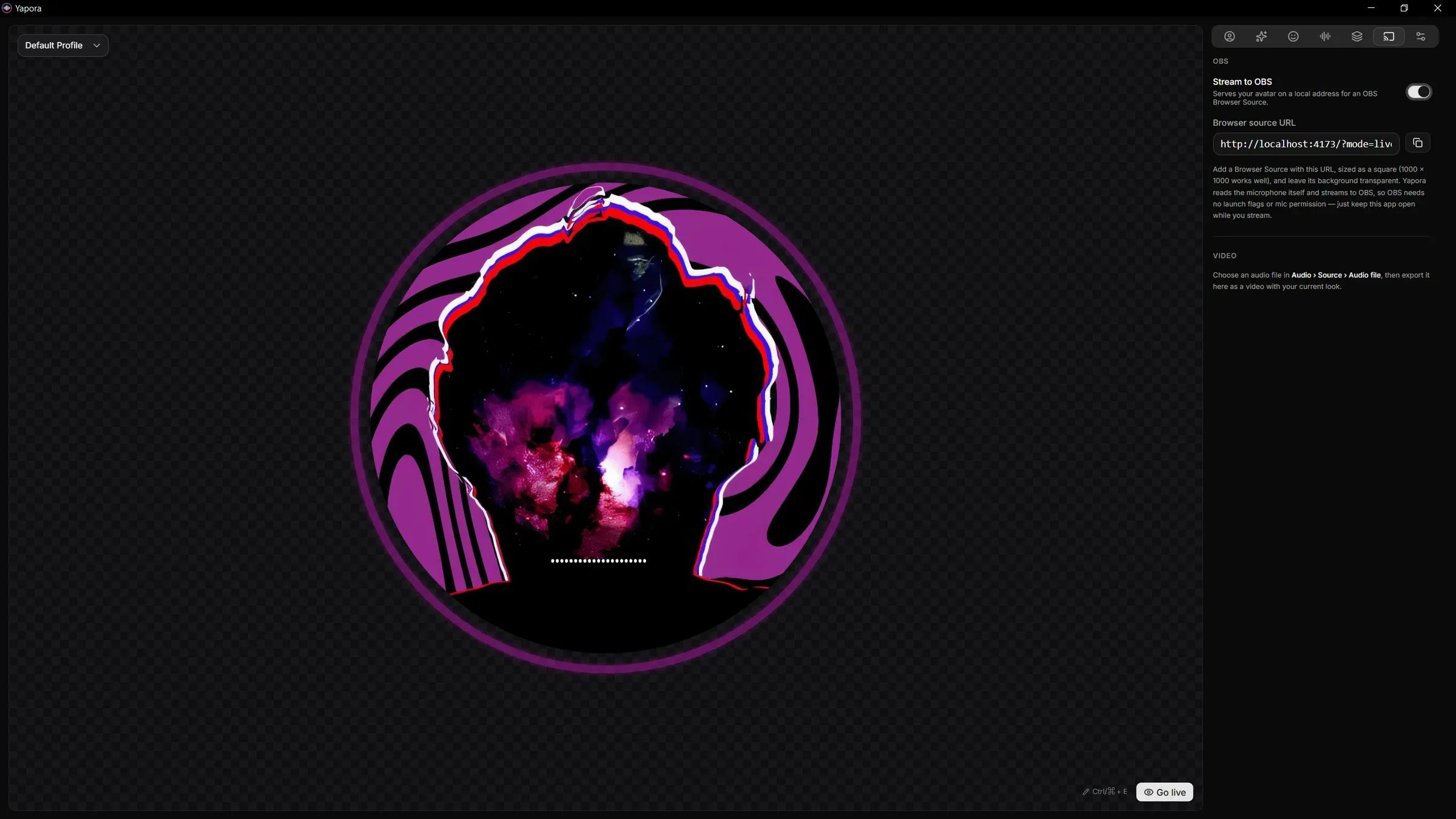
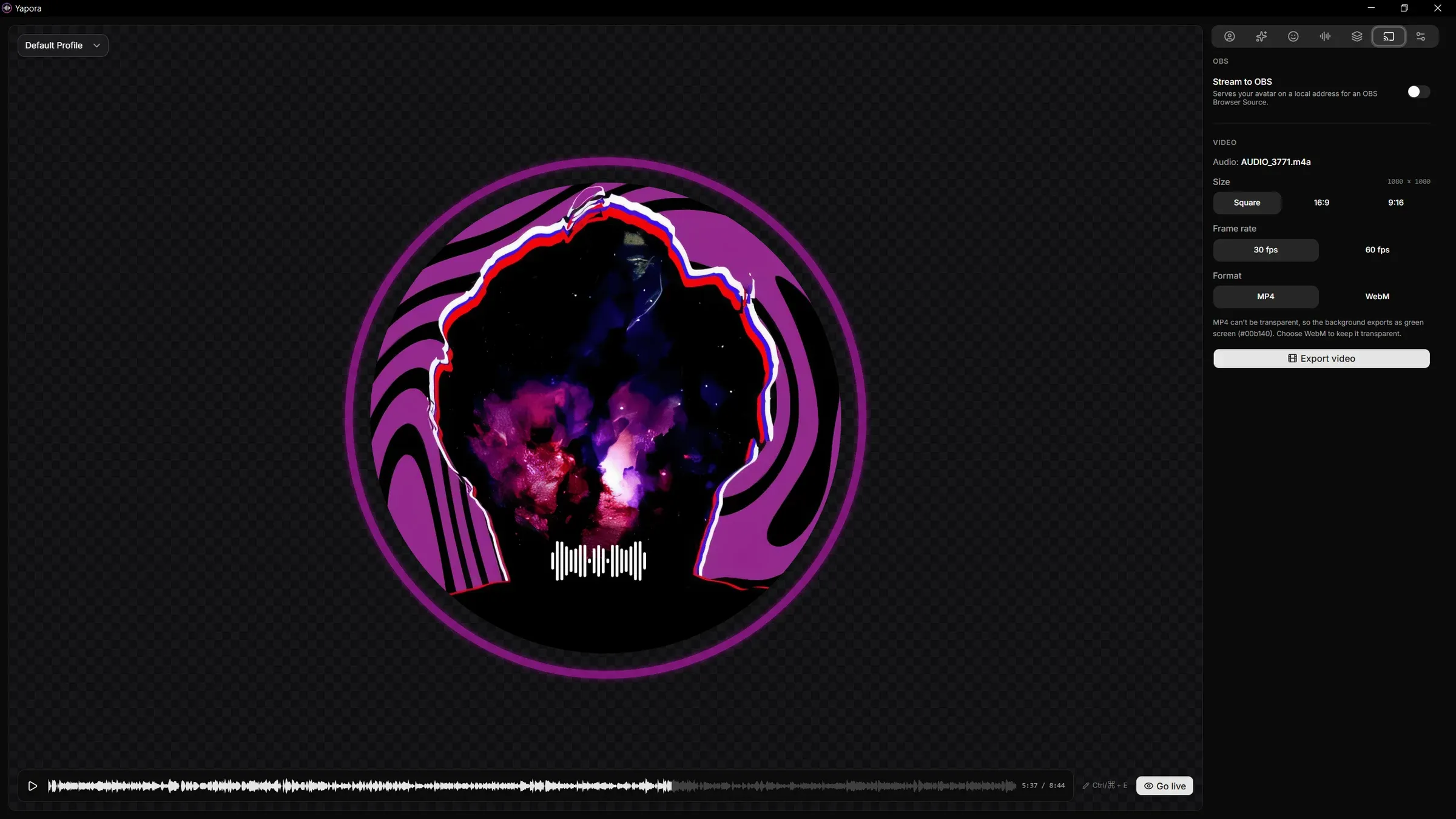
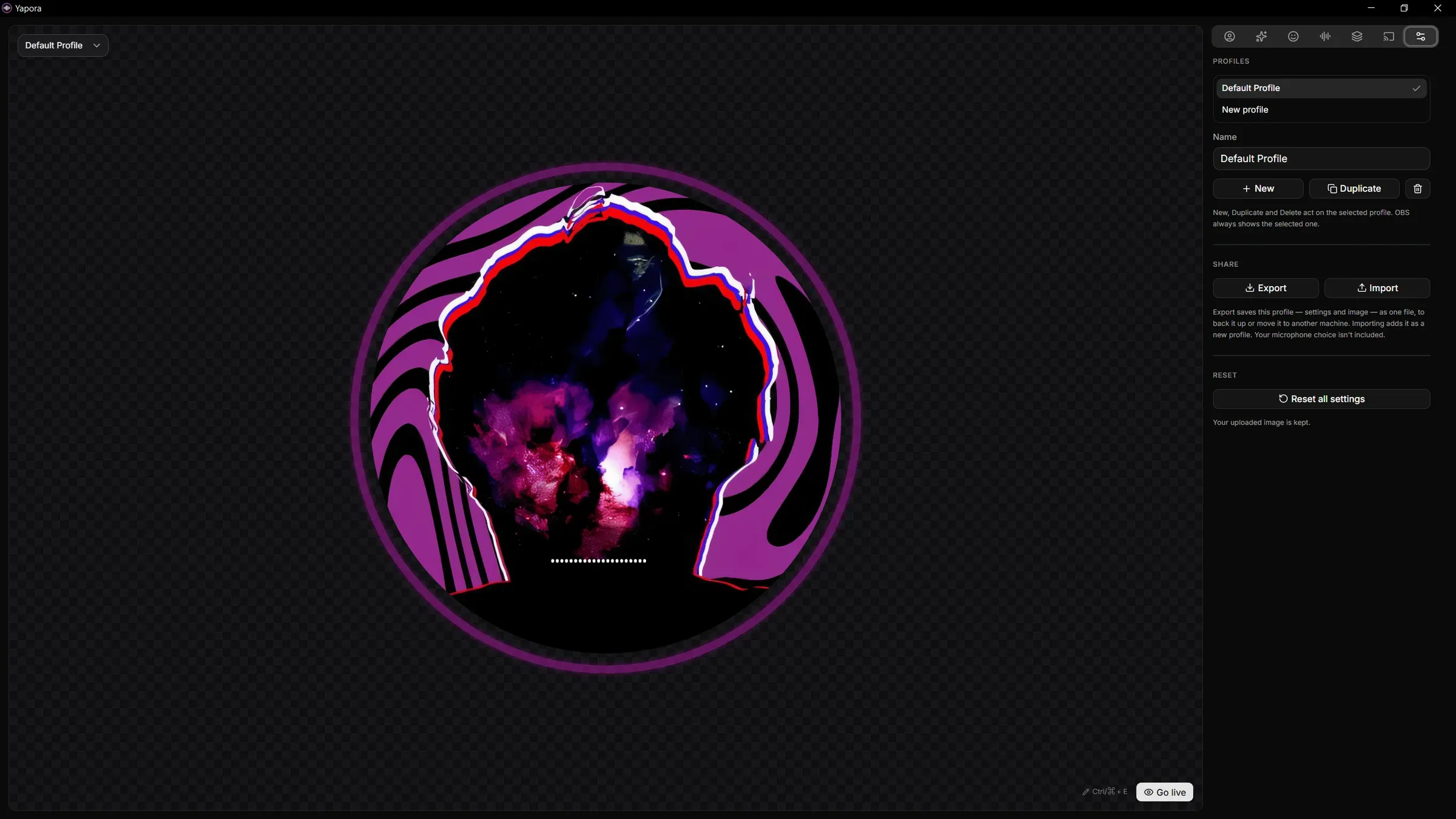
Replace the image, or crop it again to reframe it
Concept
The first Yapora was a web page loaded into OBS as a Browser Source, with the avatar drawn so it stays sharp at any size. It worked, but OBS never asks for microphone access, so you had to relaunch OBS with special flags and keep a terminal window open while you streamed.
The same night it became a Windows app. Yapora started reading the microphone itself and streaming the avatar to OBS, so OBS needed no flags or permissions. Profiles, audio files and video export came with it, and v0.0.1 beta went public that morning.
v0.0.2 let WebM exports keep a transparent background, so the avatar drops straight over other footage in OBS or a video editor. MP4 can't store transparency, so it still exports as green screen, and the export panel tells you which one you'll get.
Not just a talking avatar, but an actual audio-visual element for whatever sound you want.
I made Yapora because a friend and I wanted to make a video together. Neither of us wanted webcams, since they're low quality and the video was just for fun, so we thought of how some people record Discord while they talk. Seeing who's speaking helps the viewer follow along.
But recording Discord is inconsistent. It's low quality and looks bad zoomed in, and recording your screen and then uploading to YouTube adds artifacts and drops the quality further. So I made my own.
Yapora turned out customizable enough to make finished videos on its own. It can be center stage or one element of your screen. Use it however you want, and it responds to creativity.
How it's built
How it's shaped
Yapora is yap plus aura: you talk, and your avatar glows and moves with you.
Yapora is for anyone who wants a voice on screen without a webcam: streamers, friends making a video for fun, or anyone who wants a sound to have something to look at.
Yapora is free to download, and its source is public on GitHub.
Yapora went public as a beta on Sep 30, 2026, and v0.0.2 followed on Oct 3. Each release goes up on GitHub with both installers and a plain list of what it can't do yet. The installer isn't code-signed yet, so Windows asks you to confirm the first time you run it.